By using this method, you can view file-related activities performed only by users within Teams.
Methods Attempted in the Purview Portal Audit Log
The following methods were attempted to determine if it was possible to search for user file activities exclusively within Teams using the Purview Portal.
Attempt 1) Activities - friendly names: Accessed file, Downloaded file, Uploaded file / Workloads: MicrosoftTeams

Initially, since the file activity occurred within Teams, it was assumed the Workload would be MicrosoftTeams, and file-related activities were selected.
Result: Total results = 0

From the next attempts onward, the goal was to first search to confirm what values the properties of the Teams file activity logs would hold.

Attempt 2) Activities - friendly names: Accessed file / Workloads: SharePoint, OneDrive
Assuming the Workload was not MicrosoftTeams, it was determined that it must be either SharePoint or OneDrive. Only Accessed file was selected to reduce the number of results.
Result: Total results = 45

From the result list, it was confirmed that the RecordType value was SharePointFileOperation.
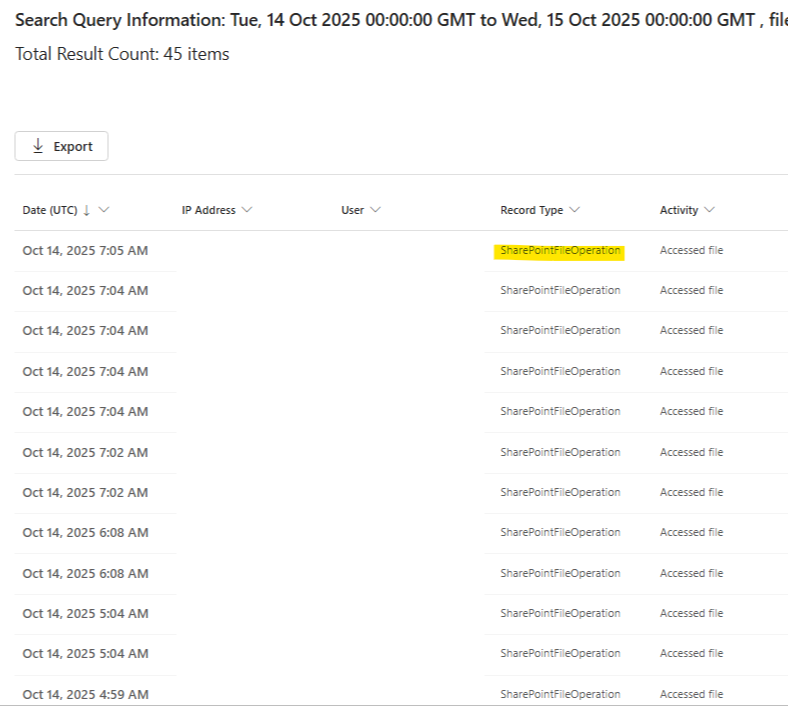
Attempt 3) Record Types: SharePointFileOperation

The search was conducted again, based on the RecordType confirmed in Attempt 2.
Upon checking the exported log results in Excel, various activities including FileAccessed were present. However, it was necessary to exclude the following types of activities:
- External Teams activities (e.g., FileModified)
- System activities (e.g., FileSensitivityLabelApplied)
- Activities unrelated to files (e.g., FolderCreated)
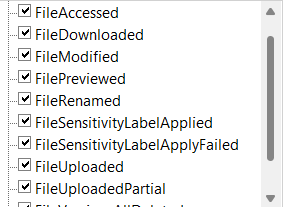
It seemed necessary to utilize the ApplicationDisplayName property within the AuditData object to view only file activities within Teams.

Attempt 4) Activities - operation names: FileDownloaded, FileAccessed, FileUploaded, FilePreviewed / Record Types: SharePointFileOperation / Keyword Search: Microsoft Teams

We specified the file activities that could occur within Teams from the SharePointFileOperation confirmed in Attempt 3, and entered Microsoft Teams in the Keyword Search. The reason for specifying the Keyword was to find entries where the ApplicationDisplayName value was either Microsoft Teams or Microsoft Teams Web Client.
Consequently, we successfully searched for the target user-specific file activities that occurred in Microsoft Teams or Microsoft Teams Web Client.


However, because we used "Microsoft Teams" as a keyword, there was a possibility that results that were not actual Teams file activities (e.g., if the file name contained that keyword) might be included in the search results.
Searching Teams File Activity Logs in PowerShell
It appeared difficult to search only for file activities originating from the Microsoft Teams application within the Purview Portal. Therefore, an approach was implemented using PowerShell to query the Exchange Online audit logs, extract only Teams-related events, and save them as a CSV file.
Connect-ExchangeOnline

# Set base path
$basePath   = "/Users/"
$outputFile = "$basePath\AuditLogRecords.csv"

# Search date range
$start = "10/14/2025"
$end   = "10/15/2025"

# RecordType and Operations
$record = "SharePointFileOperation"
$ops    = @("FileDownloaded","FileUploaded","FileAccessed","FilePreviewed")

# Result size
$resultSize = 5000

# Retrieve audit logs and export to CSV
Search-UnifiedAuditLog -StartDate $start -EndDate $end -RecordType $record -Operations $ops -ResultSize $resultSize |
    Where-Object { $_.AuditData -like '*"ApplicationDisplayName":"Microsoft Teams*' } |
    Export-Csv -Path $outputFile
We used the Search-UnifiedAuditLog cmdlet from the Exchange Online module to query the audit logs, and then filtered the records using Where-Object to select only those where the ApplicationDisplayName value within the AuditData property starts with "Microsoft Teams". Finally, the filtered results were exported in CSV format.
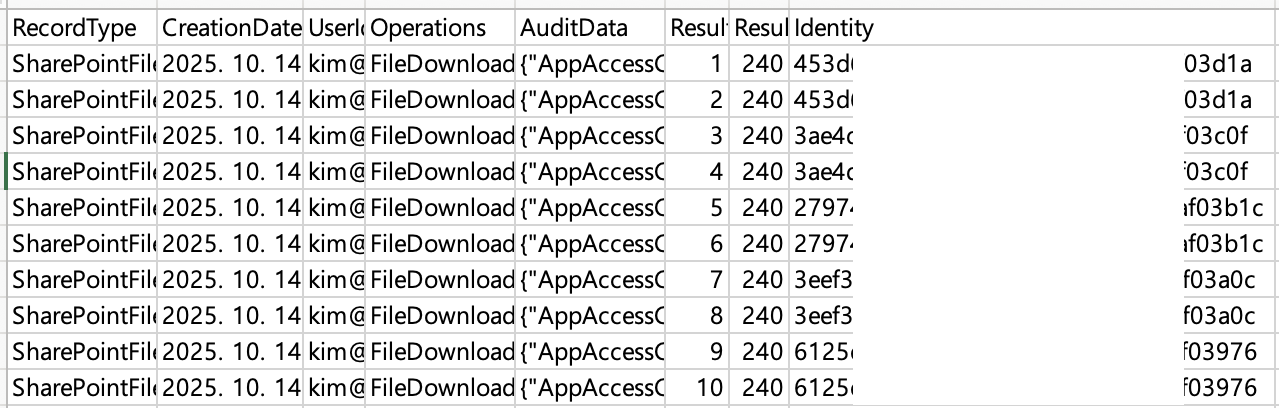
However, upon checking the resulting file, records with duplicate Identity values accounted for about half of the total.
Searching Teams File Activity Logs in PowerShell - Removing Duplicate Records
The cause of the duplicates when running the Search-UnifiedAuditLog cmdlet was not determined.
Therefore, I used PowerShell's built-in Sort-Object cmdlet to sort the objects by property value and remove duplicates.
Connect-ExchangeOnline

# Set base path
$basePath   = "/Users/"
$outputFile = "$basePath\AuditLogRecords.csv"

# Search date range
$start = "10/14/2025"
$end   = "10/15/2025"

# RecordType and Operations
$record = "SharePointFileOperation"
$ops    = @("FileDownloaded","FileUploaded","FileAccessed","FilePreviewed")

# Result size
$resultSize = 5000

# Retrieve audit logs and export to CSV
Search-UnifiedAuditLog -StartDate $start -EndDate $end -RecordType $record -Operations $ops -ResultSize $resultSize |
    Where-Object { $_.AuditData -like '*"ApplicationDisplayName":"Microsoft Teams*' } |
    Sort-Object -Property Identity -Unique |
    Export-Csv -Path $outputFile
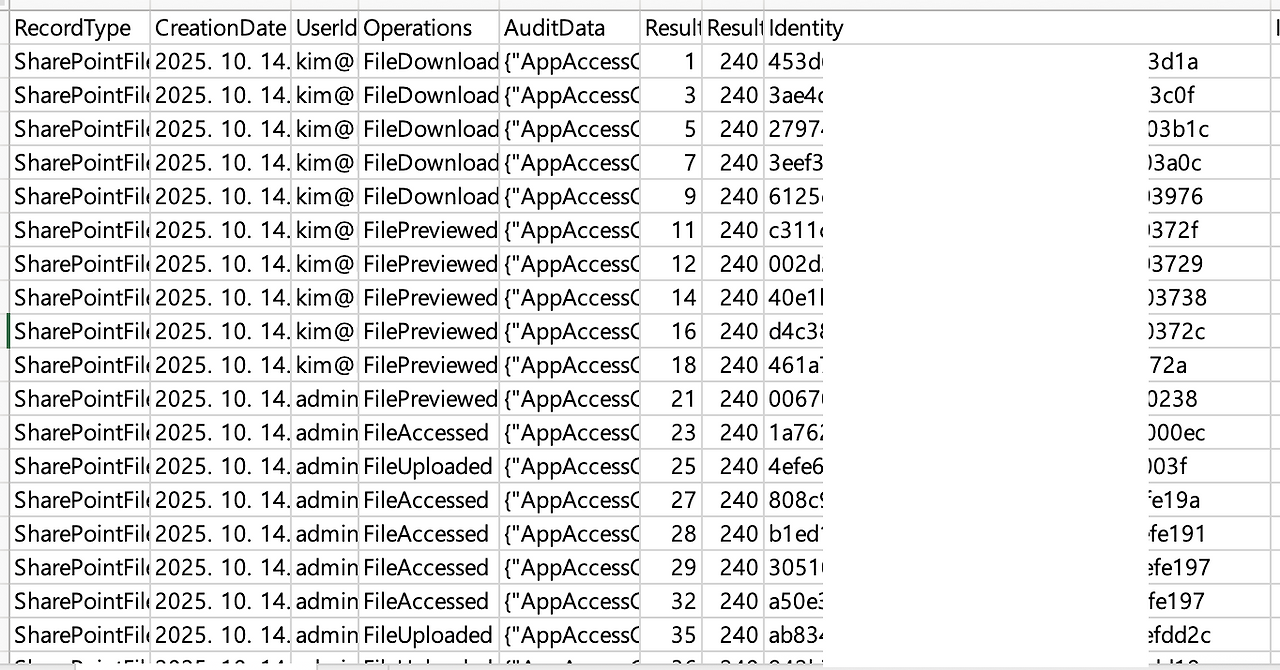
Ultimately, we were successfully able to obtain the target user-specific Teams file activity logs without duplicates.
Reference Documentation
- https://learn.microsoft.com/en-us/office/office-365-management-api/office-365-management-activity-api-schema
- https://learn.microsoft.com/en-us/purview/audit-log-search-script
This article is based on official Microsoft documentation, practical testing experience, and the author's personal interpretation. Implementation may vary depending on your environment, policies, and timing. Please use this guide as a reference.
'en) Microsoft 365 > Purview' 카테고리의 다른 글
| Owner-Only Sensitivity Label Encryption Configuration (IPC_USER_ID_OWNER) (0) | 2025.11.27 |
|---|